If you click on the “Users” button in the menu on the left side it will open the overview about the currently existing user accounts in your system.
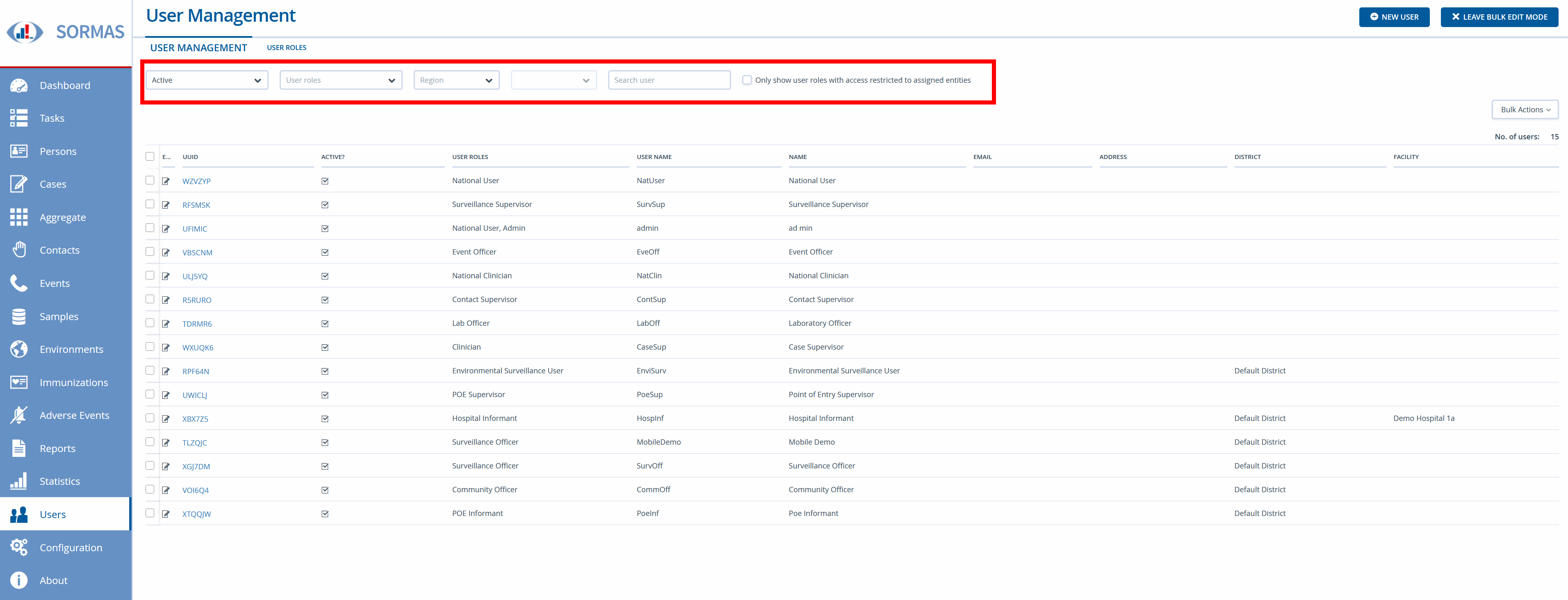
 

At the top, you have the option to filter the user accounts to make it easier for you to find the one you are looking for in an environment that could include hundreds of user accounts.


The available filters can be combined with each other and have the following effect:

Active? Show only active or inactive user accounts.
User Roles Show only user accounts that have a specific user role attached to it.
Region Show only user accounts that are responsible for a specific region.
District (Only visible when you select a value in the “Region” filter).
Show only user accounts that are responsible for a specific district.
Search User Search for a specific user account’s name directly.
Only show user roles with access restricted to assigned entities Show user accounts that have a role attached to them where the value “Restrict access to assigned entities” is set.


If you have found the user you are looking for you can click on the icon in the “Edit” column of the table to open the user account and make changes to it.
For the purpose of this course, we will focus on creating a completely new user account, but the information you will learn shortly is also applicable for editing an existing account.


If you click on “New User” in the top right, a popup will open where you can configure a new user account.

 

This window is split up into four different sections. Let’s go through them one by one.


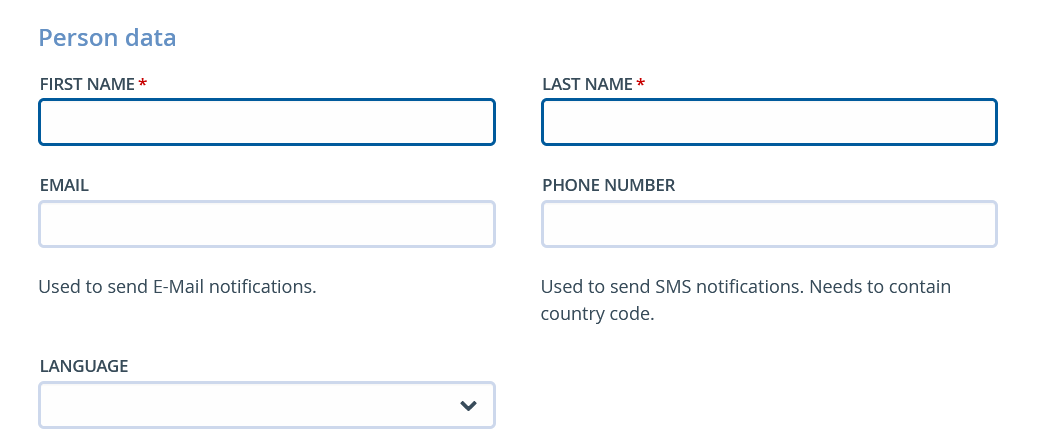
Person Data

First Name
The user’s first name to de displayed in the system


Last Name
The user’s last name to de displayed in the system


Email
The user’s email address to be used for email notifications


Phone Number
The user’s phone number to be used for SMS notifications


Language
The user’s default language on first login.
This can be changed by the user to a different language if they prefer.


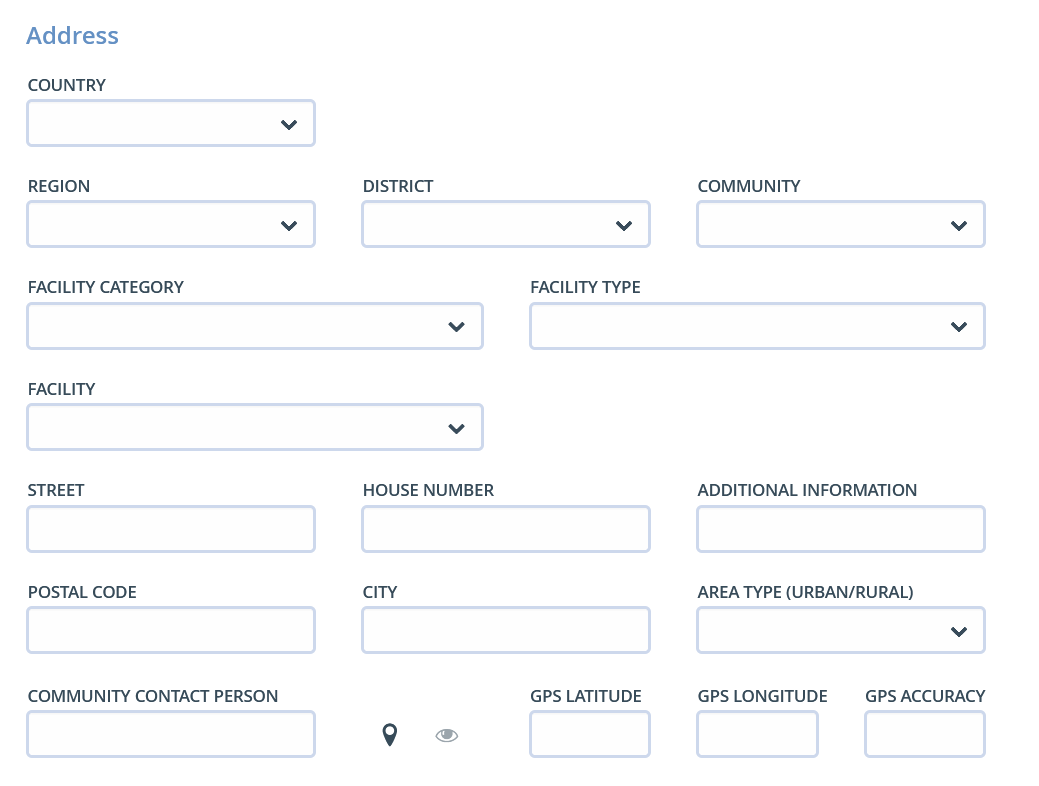
Address

All the information in this section is purely informational and does not affect what a user can see. All values are optional.

Country
The country of residence of the user


Region
The region of residence of the user


District
The district of residence of the user


Community
The community of residence of the user


Facility Category
The user’s associated facility category


Facility Type
The user’s associated facility type


Facility
The user’s associated facility


Street
The street of residence of the user


House Number
The house number


Additional Information
Any additional information regarding the address


Postal Code
The user’s Postal Code


City
The city of residence of the user


Area Type
Is the area Rural or Urban?


Community Contact Person
Is there a specific person to contact when trying to reach out to this user?


Geo Location Button
Clicking this button will try to receive the geo-location of the user based on the previously provided information. If successful it will fill in the correct information automatically in the next fields.


See Location Button
When a geo-location is provided, clicking this button will open a popup that shows the location on a map.


GPS Latitude
The latitude of the user’s geo-location


GPS Longitude
The longitude of the user’s geo-location


GPS Accuracy
The accuracy of the geo-location in meters


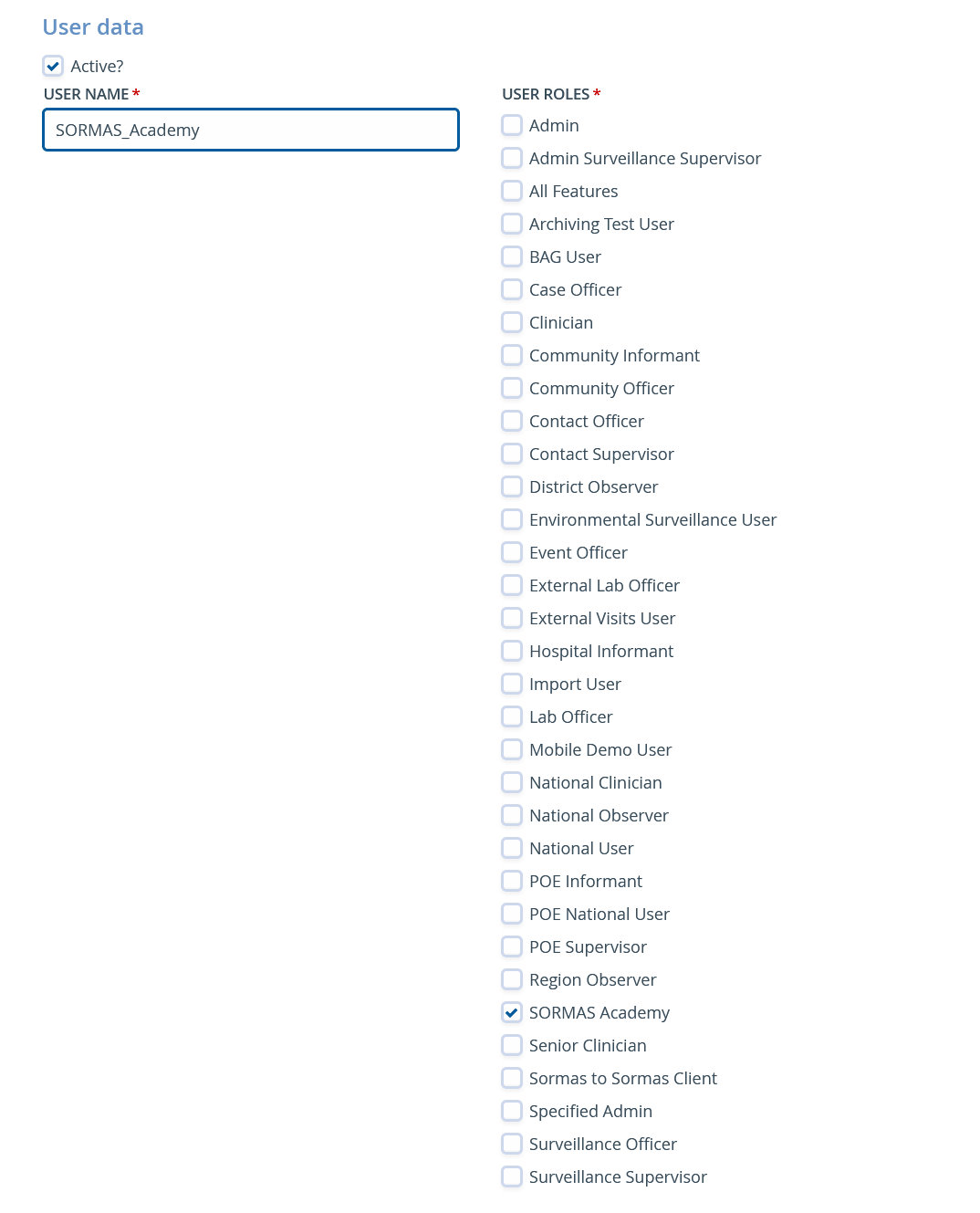
User Data

User Name
The user name for this user account. It will be prefilled with a suggestion based on the user’s first and last name, but can be changed to anything else in case you want to follow specific naming conventions.


User Roles
This is where you can assign specific user roles. The list of available roles contains all roles in the system that are set to “active”. You can select as many user roles as you want.

Please note:
Depending on the user roles you selected, additional fields may show up below the list of user roles where you need to specify a region, district, community, facility, point of entry, etc.
Which fields are required depends on what you selected at the “Jurisdiction Level” when creating the user role. This selection will control which things a user can access exactly in the system.


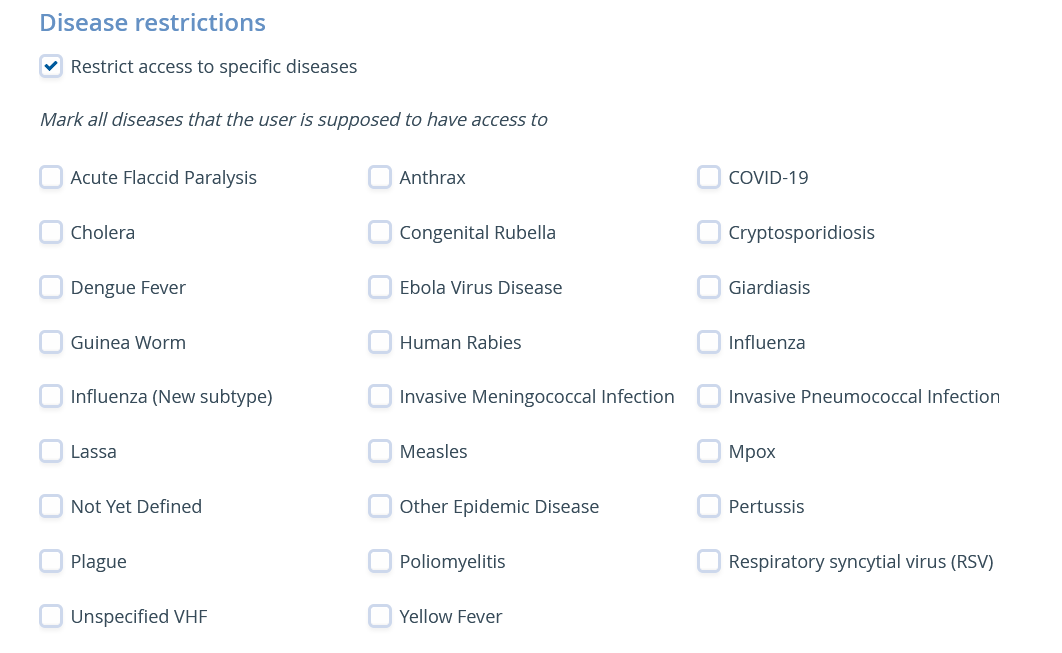
Disease Restrictions

In this section you can restrict access of a user account to only specific Diseases. The list contains all diseases that are set to active in the disease configuration and you can select as many diseases as you want.

Modifié le: lundi 18 mai 2026, 15:48